Welcome to CAPAVIDA

An inclusive platform designed to empower individuals of all abilities to find opportunities, build communities, and access resources.

This help center provides guidance on using the platform features, tailored to your role as a job seeker, opportunity provider, or community member.

Getting Started

Creating Your Account

CAPAVIDA offers three types of accounts based on your needs:

Navigating the Platform

The CAPAVIDA platform has a user-friendly navigation structure to help you access all features:
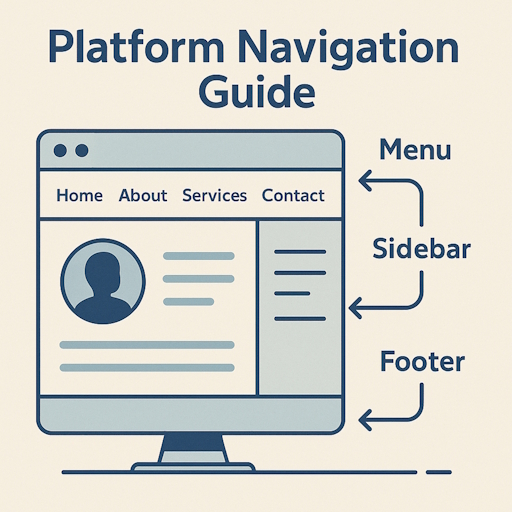
  • Top Navigation Bar: Access primary sections (Jobs, Marketplace)
  • User Menu: Access your profile, account settings, and role-specific dashboards
  • Search: Find jobs and products throughout the platform
  • Dashboard: Your personalized hub based on your role (User, Opportunity Provider, or Admin)
Platform Navigation Guide

For Job Seekers

Setting Up Your Profile

A complete profile helps employers understand your skills and abilities:

Personal Information

Add your name, contact details, and location to help employers reach you.

Update Profile

Accessibility Needs

Specify any disabilities or accessibility requirements to find suitable opportunities.

Update Profile

Skills & Experience

Highlight your skills, qualifications, and work experience to stand out.

Update Profile

Resume/CV

Upload your resume to quickly apply for jobs that match your qualifications.

Upload Resume

Searching for Jobs

CAPAVIDA offers job search tools to find opportunities:

1

Basic Search

Use keywords, location, and job type to find relevant opportunities.

2

Advanced Filters

Filter by job category, industry, and experience level.

3

View Job Details

Click on a job to view the full description and requirements.

4

Save Interesting Jobs

Bookmark jobs you're interested in for later application.

Applying for Jobs

When you find a suitable job, the application process is straightforward:

  1. View the job details to ensure it matches your skills and requirements
  2. Click the "Apply Now" button on the job listing
  3. Review your profile information and make any necessary updates
  4. Upload your resume/CV if required
  5. Complete any additional application questions
  6. Submit your application
Tip: Customize your application for each position to highlight relevant experience.

Managing Applications

Track your job applications:

  • View your submitted applications
  • Check the status of each application
  • Receive notifications about application updates
  • Save jobs to apply later
Note: Application tracking features are being enhanced. More comprehensive tools will be available soon.

For Opportunity Providers

Setting Up Your Employer Profile

Create a compelling employer profile to attract quality candidates:

Company Information

Add your company name, logo, description, and contact details.

Update Profile

Company Culture

Highlight your inclusive workplace culture and values.

Update Profile

Accessibility Information

Detail the accessibility features of your workplace.

Coming Soon

Certifications

Add any inclusivity certifications or awards your company has received.

Coming Soon

Posting Jobs

Create job listings that reach a diverse candidate pool:

1

Job Details

Add title, description, requirements, and compensation information.

2

Job Category

Select relevant categories to help candidates find your position.

3

Skills & Requirements

List required skills, experience, and qualifications in an inclusive manner.

4

Application Settings

Set application deadlines and specify how candidates should apply.

5

Review & Publish

Review all details and publish the job listing on the platform.

Tip: Use inclusive language in your job descriptions and focus on essential skills rather than potential barriers.

Managing Applications

Review and process candidate applications:

  • Access applications from your employer dashboard
  • Filter applications by job posting
  • Review candidate profiles and resumes
  • Contact candidates through the platform
  • Track application statuses
Note: Advanced application management features are currently being developed.

Marketplace Management

Showcase your products or services in the CAPAVIDA Marketplace:

Marketplace Setup

Create your storefront with branding and contact information.

Manage Marketplace

Product Management

Add, edit, and organize your products with descriptions and images.

Manage Products

Analytics

Track views and engagement with your marketplace offerings.

Coming Soon

Customer Inquiries

Manage and respond to inquiries about your products or services.

Coming Soon

Communities

Communities Feature Now Available!

Full community features are now live including creation, posts, comments, and moderation. Start connecting with others today!

Understanding Community Types

CAPAVIDA offers two types of communities, each serving different purposes:

Professional Communities

For Employers Only

Who can create: Verified employers and organizations

Purpose: Share job opportunities, industry insights, and professional networking

Features:

  • Can be verified by admins (verified badge)
  • Linked to employer profile
  • Post job opportunities within community
  • No creation limits
Professional communities undergo admin review before going live.

Personal Communities

For All Users

Who can create: Any registered user

Purpose: Peer support, shared interests, and social networking

Features:

  • Maximum 3 communities per user
  • 30-day cooldown between creations
  • Grassroots community building
  • Focus on peer support and interests
Personal communities are auto-approved but monitored by admins.

Discovering Communities

Find and join communities that match your interests:

Browse Communities

Explore all approved communities with search and filters.

  • Filter by type (Professional/Personal)
  • Sort by followers, date, or alphabetically
  • Search by name or description
  • View verified communities
Explore Communities

Featured Communities

Discover highlighted communities on the homepage.

  • Top 4 communities by followers
  • Professional communities prioritized
  • Verified communities highlighted
  • Quick access to explore
View Homepage

Follow Communities

Click "Follow" to join communities and receive updates.

  • Access to community posts
  • Ability to comment on posts
  • View in "My Communities" section
  • Unfollow anytime
My Communities

Community Details

Each community page includes multiple sections:

  • Posts: View and engage with content
  • About: Learn about the community
  • Policies: Review community rules
  • Gallery: View community photos

Creating Your Own Community

Start a community to connect with others who share your interests or professional goals:

Important: Community Creation Requirements

For Professional Communities:

  • Must have an Employer account
  • Unlimited communities allowed
  • Requires admin approval
  • Can be verified

For Personal Communities:

  • Any registered user can create
  • Maximum 3 communities per user
  • 30-day cooldown between creations
  • Auto-approved (monitored)

Community Creation Steps:

1

Basic Information

Choose a clear, descriptive name and write a compelling slogan that captures your community's essence.

2

Community Type

Select Professional (employers only) or Personal (all users) based on your account type and purpose.

3

About & Policies

Write a detailed description of your community and establish clear policies for member behavior.

4

Visual Elements

Upload a main photo (required) and gallery images (optional) to make your community visually appealing.

Supported: JPG, JPEG, PNG (max 5MB each)
5

Review & Submit

Professional communities await approval. Personal communities go live immediately but are monitored.

Managing Your Communities

If you've created communities, you have access to management tools:

Edit Community

Update your community details anytime:

  • Modify name, slogan, about, policies
  • Change main photo
  • Add/remove gallery images
  • Cannot change community type

Create Posts

Share content with your community:

  • Write posts with titles and descriptions
  • Add tags for organization
  • Attach images and documents
  • Pin important posts to top

Pin Posts

Highlight important announcements:

  • Pin/unpin posts as community creator
  • Pinned posts appear at top
  • Multiple posts can be pinned
  • Marked with pin icon

Moderate Content

Maintain community quality:

  • Edit any post in your community
  • Delete inappropriate posts
  • Remove offensive comments
  • Enforce community policies

Engaging with Community Content

Active participation helps build connections and visibility:

1

Follow Communities

Click "Follow" on any community page to join. You can follow unlimited communities.

2

Read Posts

Browse posts from community creators and members to stay informed and connected.

3

Create Posts

Share your thoughts with communities you follow. Posts can include text, images, and attachments.

Requirements: Must be following the community, authenticated user
4

Comment on Posts

Engage in discussions by commenting on posts. Comments support up to 500 characters.

You can delete your own comments anytime
Tip: Regular engagement increases your visibility among potential employers and community members. Quality contributions build your professional reputation.

Community Post Comments

Comments enable meaningful discussions and community engagement:

Adding Comments

Share your thoughts on community posts:

  1. Navigate to the community post
  2. Click "Show comments" to expand
  3. Type your message (max 500 characters)
  4. Click "Post Comment" to submit
Character counter helps you stay within limits

Managing Comments

Control your comment activity:

  • Your comments: Delete anytime
  • Community creator: Can delete any comment
  • Admins: Full comment oversight
  • Timestamps: "Time ago" format for clarity

Comment Permissions

Who can comment on posts:

  • Must be authenticated (logged in)
  • Must be following the community
  • Community must be approved (not archived)
  • Post must not be deleted

Comment Visibility

Comment display features:

  • Collapsible comment sections
  • Chronological order (oldest first)
  • User avatars displayed
  • Real-time character counter
Comment Etiquette: Keep comments respectful, on-topic, and constructive. Offensive or spam comments will be removed and may result in account restrictions.

Community Moderation & Safety

CAPAVIDA maintains community quality through a comprehensive moderation system:

For Professional Communities:

Pending Approval

New professional communities await admin review:

  • Visible only to creator and admins
  • Reviewed for appropriateness
  • Typically processed within 24-48 hours
Approved

Once approved, communities are publicly visible:

  • Appears in search and listings
  • Can be followed by users
  • Featured on homepage (if top 4)

Warning System:

Communities that violate policies may receive warnings:

3-Strike Policy
  • 1st Warning: Notification sent to creator
  • 2nd Warning: Community visibility reduced
  • 3rd Warning: Community automatically archived

Verification Badge:

Professional communities can earn a verification badge:

  • Awarded by admins to trusted organizations
  • Indicates legitimate, high-quality community
  • Displayed with green checkmark icon
  • Cannot be self-requested (admin-initiated only)

Archived Communities:

Communities may be archived for policy violations or after 3 warnings:

  • No longer visible to public users
  • Cannot accept new posts or comments
  • Visible to admins and creator only
  • Can be unarchived by admins if issues resolved

Community Guidelines & Best Practices

To ensure a positive experience for all members, please follow these guidelines:

Do:

  • Be respectful and inclusive in all interactions
  • Share relevant, valuable content
  • Respect the privacy of other members
  • Follow each community's specific policies
  • Report inappropriate content to moderators
  • Support and encourage fellow members
  • Use clear, professional language
  • Give credit for shared content

Don't:

  • Post spam or promotional content
  • Share offensive or discriminatory content
  • Harass or bully other members
  • Share false or misleading information
  • Violate others' privacy or copyright
  • Use communities for commercial gain (personal communities)
  • Create duplicate communities
  • Impersonate others
Reporting Issues

If you encounter inappropriate content or behavior, contact support at support@capavida.com or report through community moderators. Include details and screenshots when possible.

Coming Soon: Enhanced Community Features

We're continuously improving the Communities experience. Upcoming features include:

Engagement Features:
  • Post Reactions: Like, Love, Support reactions
  • Comment Notifications: Get notified of replies
  • Bookmark Posts: Save posts for later
  • Share Posts: Share community content
Analytics & Discovery:
  • Community Analytics: Track growth and engagement
  • Trending Communities: Discover popular communities
  • Recommended Communities: Personalized suggestions
  • Activity Feed: See updates from followed communities

Marketplace

Discovering Products & Services

Explore the CAPAVIDA Marketplace for accessible products and services:

Browse Categories

Explore products by category, type, or features.

Visit Marketplace

Filter Products

Filter products by price, category, or provider.

Visit Marketplace

Featured Items

Discover highlighted products and special offers.

View Featured

Save Favorites

Bookmark products you're interested in for later reference.

Coming Soon

Exploring Product Details

Learn more about marketplace products:

1

View Product Details

Review complete product information, images, and specifications.

2

Learn About the Provider

See information about the company offering the product.

3

Contact Options

Find contact information to inquire about the product.

4

Similar Products

Discover related products that might interest you.

Tip: Product inquiries and direct messaging features will be available in an upcoming release.

For Providers: Managing Your Marketplace

If you're a marketplace provider, you can manage your offerings from your dashboard:

  • Add new products with descriptions, images, and pricing
  • Categorize products appropriately
  • Update product information and availability
  • Manage your storefront details
  • Monitor product visibility and engagement
Tip: High-quality images and detailed product information significantly increase engagement with your products.

Accessibility Features

Platform Accessibility

CAPAVIDA is designed with accessibility as a priority:

Visual Accessibility

High contrast options, text resizing, and screen reader compatibility.

Motor Accessibility

Keyboard navigation, large click targets, and reduced motion options.

Hearing Accessibility

Visual alternatives for audio content where applicable.

Cognitive Accessibility

Clear layout, consistent navigation, and straightforward content.

Customizing Your Experience

We're working on personalization options to meet your accessibility needs:

Coming Soon: Personalized accessibility settings including text size adjustment, contrast options, and motion reduction controls will be available in an upcoming update.

Reporting Accessibility Issues

Help us improve the platform's accessibility:

1

Identify the Issue

Note which page or feature is presenting accessibility challenges.

2

Report the Problem

Use the "Report Accessibility Issue" form in the Help Center.

3

Provide Details

Describe the issue, including device and assistive technology used.

4

Follow-up

Our team will review your report and contact you if needed.

Account Management

Profile Settings

Keep your profile information up to date:

  • Update personal information (name, contact details, location)
  • Modify your profile photo
  • Edit your bio and professional summary
  • Update skills and experience details

To access these settings, click on your username in the top menu and select "Profile".

Account Security

Protect your CAPAVIDA account:

Password Management

Change your password and maintain account security.

Change Password

Account Recovery

Set up recovery options in case you forget your password.

Coming Soon

Notification Settings

Control what notifications you receive from the platform.

Coming Soon

Account Activity

Review your recent account activities and logins.

Coming Soon

Privacy Settings

Control what information you share on CAPAVIDA:

Coming Soon: Enhanced privacy controls are being developed, including profile visibility settings, contact preferences, and data sharing options.

Account Types

Understand the different account types and features:

Feature User Account Opportunity Provider Admin
Job Search
Job Applications
Post Jobs
Marketplace Browsing
Sell Products
Platform Administration

Frequently Asked Questions

Yes, CAPAVIDA currently offers free accounts for both job seekers and opportunity providers. Premium features may be introduced in the future.
To register as an Opportunity Provider, click on the "Register" button in the navigation menu and select the "Opportunity Provider" option. Complete the registration form with your company details.
To post a job, you need to have an Opportunity Provider account. Log in, navigate to your dashboard, and click on "Post a Job." Fill out the job details form and submit it for review.
Yes, if you have an Opportunity Provider account, you can add products to the marketplace. Navigate to your dashboard, select "Marketplace," and then "Add Product" to list your offerings.
To create a community, navigate to /community/create. Employers can create unlimited Professional communities (requires approval), while regular users can create up to 3 Personal communities with a 30-day cooldown between creations. Fill out the form with your community details, upload images, and submit.
Professional Communities: Created by employers/organizations, unlimited creations, require admin approval, can be verified. Personal Communities: Created by any user, max 3 per user, 30-day cooldown, auto-approved but monitored. Both types offer full posting and commenting features.
To comment on a post, you must be logged in and following the community. Navigate to the community page, find the post, click "Show comments," type your message (max 500 characters), and click "Post Comment." You can delete your own comments anytime, and community creators can moderate all comments.
CAPAVIDA uses a 3-strike warning system. After the 1st warning, you'll be notified. The 2nd warning reduces visibility. The 3rd warning results in automatic archiving of your community. Archived communities are hidden from public view and cannot accept new content. Follow community guidelines to avoid warnings.
The verification badge (green checkmark) is awarded by platform administrators to Professional communities of trusted, established organizations. This is not a self-requested feature—admins review and verify communities based on legitimacy, activity, and community quality. Focus on building an active, valuable community to increase chances of verification.
Yes, community creators can delete their communities at any time from the community management page. Deleting a community is permanent and will remove all posts, comments, followers, and media associated with it. This action cannot be undone, so please consider carefully before deleting.